Setting up your Locations
Learn how to add lesson sites and set your availability in the TeachMe.To Coach App. Choose teaching locations, manage time off, and keep your schedule accurate for Students.

Setting up your Locations and Availability is essential for Students to find you and book sessions with confidence. Both steps are managed directly inside the TeachMe.To Coach App, and keeping them updated is one of the best ways to increase your bookings.
Here’s how to set everything up:
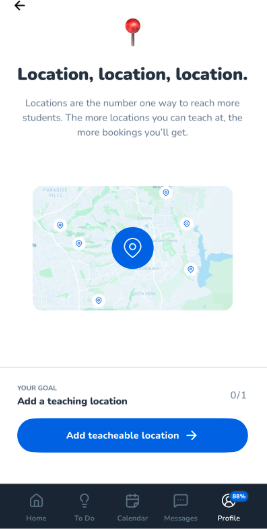
Add Your Teaching Locations (Lesson Sites)
Step-by-Step
- Open the TeachMe.To Coach App
- Tap Profile in the bottom navigation
- Select Step 1: Add Lesson Sites
From here, you can add all the locations where you’re willing to teach.
Browse Suggested Locations
The app automatically recommends teaching spots based on your ZIP code, including:
- Parks
- Courts
- Driving ranges
- Gyms
- Pools
- Public and private facilities
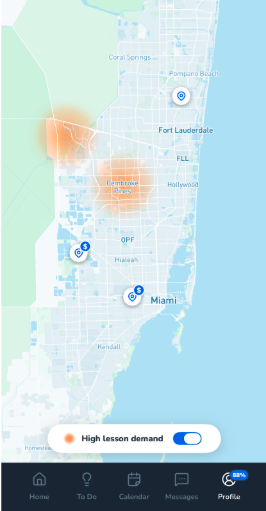
On the map, you’ll see icons indicating different types of lesson sites:
✔ High Lesson Demand
Spots where Students frequently book lessons — choosing these increases your visibility.
✔ Locations With Venue Fees
Any location marked with a $ icon requires a facility fee.
These fees often apply to golf ranges, tennis centers, indoor courts, or private venues.
You can add as many teaching sites as you like. More locations means you’ll appear in more searches.
Why Accurate Locations Matter
Keeping both sections up to date helps you:
- Show up for more relevant searches
- Get more high-intent Student bookings
- Teach at locations that fit your workflow
Coaches who keep these sections accurate see the highest booking success.
Guide to Setting up Locations in the App:
Guide to Setting Up Availability in the App:
How did we do?
Locations: Partner vs Regular
