How do I manage notifications?
Learn how to manage lesson reminder notifications in the TeachMe.To Coach App. Adjust reminder timing or rely on your phone settings for system alerts.

TeachMe.To coaches can customize lesson reminder notifications directly inside the Coach App. These reminders help you stay on top of upcoming lessons, but you can adjust their timing or turn them off whenever you like.
Other system alerts—such as payout updates, messages, and app permissions—are controlled through your phone’s notification settings.
Here’s how to manage everything:
Manage In-App Lesson Reminders
You can choose exactly when you want to be reminded about upcoming lessons.
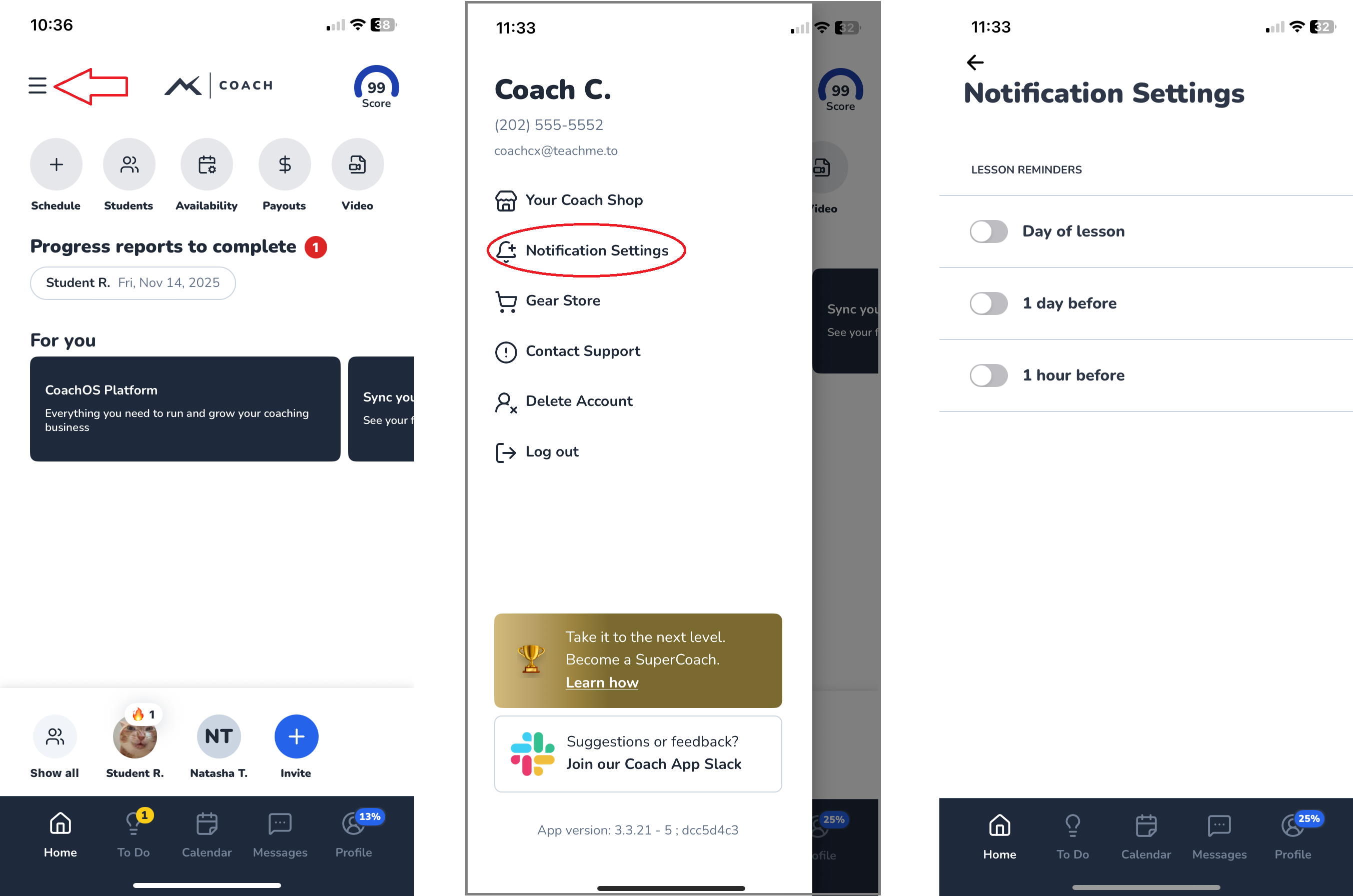
Step-by-Step: Adjust Lesson Reminder Notifications
- Open the TeachMe.To Coach App
- From the Home screen, tap the three lines (≡) in the top-left corner
- Tap Notification Settings
- Choose your preferred reminder timing:
- Day of lesson
- 1 day before
- 1 hour before
- Toggle each reminder ON or OFF depending on your preference
These updates save instantly and apply to all future lessons.
Managing Other Types of Notifications
The Coach App also sends system-related alerts, such as:
- New Student messages
- Booking requests
- Payout updates
- Profile or onboarding steps
- Background check notifications
These follow your device’s notification settings, not the in-app reminder settings.
To manage system alerts:
- iPhone: Settings → Notifications → TeachMe.To Coach App
- Android: Settings → Apps → TeachMe.To Coach App → Notifications
From there, you can enable or disable:
- Banners
- Badges
- Sounds
- Lock screen alerts
Why Notification Settings Matter
Keeping notifications on helps you:
- Respond to Students quickly
- Avoid missed lessons
- Stay current with payouts
- Keep your profile active and up to date
How did we do?
How do I complete a background check to verify my identity?
Deleting or pausing your account.
